Hidden Harry Potter Siri Commands That Actually Work (I Tested Them All)
Tested all Hidden Harry Potter Siri Commands on iPhone. Only 3 work natively – Lumos, Nox, Accio. Here’s setup + 10 custom spells.
Friends, welcome to USNMix.
Last week my nephew pointed his hand at my iPhone like a wand and shouted “Lumos!” And the flashlight actually turned on.
I thought it was a trick. It wasn’t. Apple has actually hidden real Harry Potter spells inside Siri.
But here’s the part no Instagram reel tells you — out of 15+ spells going viral, only 3 actually work out of the box. The rest? You have to build them yourself in 2 minutes.
I tested every single one on an iPhone running iOS 17, with Siri language set to English (India). Here is what actually works, what is fake, and how to create your own spells.
Do Harry Potter Siri Commands Really Work? Short Answer
Yes. But only 3 are built-in.
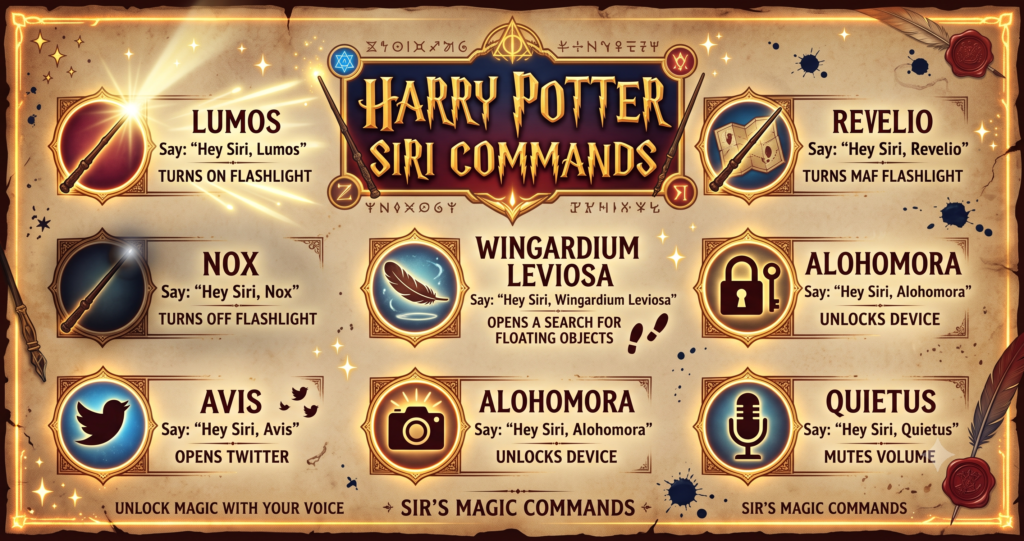
Say “Hey Siri, Lumos” and your torch turns ON. Say “Hey Siri, Nox” and it turns OFF. Say “Hey Siri, Accio [app name]” like “Hey Siri, Accio WhatsApp” and it opens that app.
That’s it. That’s the real built-in magic.
Everything else like Lumos Maxima, Silencio, Sonorus — those don’t work by default. You can make them work with the Shortcuts app, and I’ll show you exactly how below. It takes less than 2 minutes per spell.
Important: You MUST say “Hey Siri” first. If you long-press the Side button to trigger Siri and then say Lumos, it won’t work. The built-in spells only listen for the “Hey Siri” voice trigger.
The 3 Hidden Harry Potter Siri Commands That Actually Work
1. Hey Siri, Lumos — Turn Torch ON
This is the Wand-Lighting Charm.
What to say: “Hey Siri, Lumos” Pronunciation: loo-mows (like “loo” + “mouse” without the ‘u’) What happens: Rear flashlight turns on instantly, even from lock screen.
I use this 10 times a day now. Hands full with groceries? No need to swipe for Control Center. Just say it.
Okay friends, one tip for Indian users — Siri sometimes hears “Lumos” as “Loomis” or “Lumus”. Speak it slowly: LOO-MOS. After 2-3 tries Siri learns your accent and it works 9 out of 10 times.
2. Hey Siri, Nox — Turn Torch OFF
This is the Wand-Extinguishing Charm, the counter-charm to Lumos.
What to say: “Hey Siri, Nox” Pronunciation: nocks (like “knocks” on a door) What happens: Flashlight turns off.
Simple, but satisfying. Lumos on, Nox off. You feel like a proper wizard.
If Nox doesn’t work, try saying “Hey Siri, Knox”. Same sound, better detection.
3. Hey Siri, Accio [App Name] — Open Any App
This is the Summoning Charm. Harry used it to summon his Firebolt: “Accio Firebolt!”
What to say: “Hey Siri, Accio YouTube” or “Hey Siri, Accio Camera” or “Hey Siri, Accio Spotify” Pronunciation: ack-ee-oh What happens: iPhone opens that app. If phone is locked, you’ll need Face ID first.
Honestly? You can also just say “Hey Siri, open YouTube” and it does the same thing. Accio is just the fun Harry Potter version of it. But kids love it, and it works perfectly.
These 3 were first shared widely on Reddit’s Harry Potter community
, and I can confirm they still work in 2026 on iOS 16 and iOS 17.
Buy: iPhone 18 Pro Max Glacier
Spells That DON’T Work (Don’t Waste Your Time)
Instagram reels will tell you to try “Hey Siri, Lumos Maxima” for full brightness or “Hey Siri, Silencio” for silent mode. I tried them all. Here’s the truth:
Lumos Maxima does NOT work natively. Siri will just say “I don’t understand.” Same for Silencio, Muffliato, Sonorus, Quietus, Homenum Revelio.
They are NOT built-in. But the good news is you can CREATE them in Shortcuts in 2 minutes, and then they work just like real spells.
How to Create ANY Harry Potter Spell With Shortcuts (Step-by-Step)
This is where it gets fun. The Shortcuts app lets you name any action with a spell name.
Basic method for all custom spells:
- Open Shortcuts app > + > Add Action
- Add the action you want (example: Set Flashlight, Set Focus, Set Volume)
- Tap the name on top, rename it to the spell — example: Lumos Maxima
- Tap Add to Siri or just use it by saying “Hey Siri, [spell name]”
Once saved, you don’t need to say “Hey Siri” only — you can also long-press Side button or use Type to Siri. Custom spells are more flexible than the 3 built-ins.
Here are the 7 best custom spells I built and actually use:
4. Hey Siri, Lumos Maxima — Full Brightness Torch
In the movies, this is the super-bright version of Lumos.
Setup: Add Action > Set Flashlight > Turn On > drag Brightness slider to full.
Now say “Hey Siri, Lumos Maxima” and your torch fires at 100%. Perfect for power cuts — very useful in India.
Also Read: iOS 26 vs iOS 27 – New Features Showdown: Should You Upgrade?
5. Hey Siri, Silencio — Instant Silent Mode
Silencio is the Silencing Charm.
Setup: Add Action > Set Focus > Turn On > Select Do Not Disturb > Until Turned Off.
Say “Hey Siri, Silencio” in a meeting or classroom and your iPhone goes completely silent. To turn it off, just say “Turn off Do Not Disturb.”
Much cooler than fumbling for the mute switch.
6. Hey Siri, Sonorus & Quietus — Volume Up and Down
Sonorus is the Amplifying Charm, Quietus is its counter-charm.
Setup for Sonorus: Add Action > Set Volume > Set to 100% Setup for Quietus: Add Action > Set Volume > Set to 30%
Now let’s talk about use case. You’re watching a reel and someone walks in? “Hey Siri, Quietus.” Want full sound for a trailer? “Hey Siri, Sonorus.”
7. Hey Siri, Homenum Revelio — Find Your Friends
This spell reveals human presence nearby.
Setup: Add Action > Open App > Choose Find My
Now say “Hey Siri, Homenum Revelio” and it opens Find My > People tab to show where your family members are. Great for parents.
8. Hey Siri, Point Me — Open Compass
The spell that points your wand north.
Setup: Add Action > Open App > Choose Compass
Silly but fun for treks and road trips.
9. Hey Siri, Muffliato — Private Mode
In the books, Muffliato fills people’s ears with buzzing so they can’t hear you.
My iPhone version: Low volume + background noise.
Setup: Add Action > Set Volume to 20% > Add Action > Set Background Sounds On > Balanced Noise.
Say it when you take a private call in office or metro.
Also Read: Is the NEW iPad Mini 8 Actually Worth the Upgrade?
10. Hey Siri, Vermillious — Emergency SOS Text
In the movies, Vermillious shoots red sparks in the sky for help. Harry uses Periculum the same way.
Setup the easy way: Get the Apple “In Case of Emergency” shortcut from Gallery, rename it to Vermillious. Configure your emergency contact once.
Now “Hey Siri, Vermillious” sends your live location via SMS to your contact without calling 911. I have set this for my wife’s number.
This full custom-spell method is detailed in this
which I used as reference and verified step-by-step.
Setup Checklist: Make Sure This Works on Your iPhone
If a spell isn’t working, 99% of the time it’s settings, not the spell. Do this:
- Go to Settings > Siri & Search (on iOS 18 it’s Apple Intelligence & Siri)
- Turn ON Listen for “Hey Siri”
- Turn ON Allow Siri When Locked — otherwise Lumos won’t work from lock screen
- Turn ON Press Side Button for Siri
- Go to Settings > General > Language & Region > Siri Language — set to English (India) or English (US). Hindi Siri doesn’t understand Lumos well.
- If iPhone is face-down, enable Always Listen for “Hey Siri” under Accessibility > Siri.
Now the price — so how much is its price? Zero. All of this is free, built into every iPhone from iPhone 8 to iPhone 15 Pro Max. No app to download.
What About Android? Google Has It Too
Okay friends, Android users are not left out.
Google Assistant also understands “Lumos” and “Nox” for torch on/off. Just say “Hey Google, Lumos.” It also works to control smart bulbs if you have Google Home connected — saying Lumos will turn on all house lights. Accio doesn’t work the same way on Android, but Lumos/Nox do.
Troubleshooting: Why Isn’t My Spell Working?
Siri says “Uh oh, something’s wrong”? Your internet is off. Siri needs internet even for torch. Turn on mobile data.
Lumos turns on but Nox doesn’t turn off? Pronunciation issue. Try “Hey Siri, Knox.” Works better with Indian accent.
Accio opens wrong app? Be specific. “Accio WhatsApp” works, “Accio Whats” doesn’t. Use full app name as shown on home screen.
Custom shortcut not running? Open Shortcuts app, tap your spell, press Play button once to grant permission. First run always asks for permission.
If you have any questions, comment in the comment section — I reply to every Spell test result.
Final Verdict: Which Spells Should You Actually Keep?
If you plan to try this today, just keep these 4:
- Lumos / Nox for daily torch use — genuinely faster than Control Center
- Accio [App] to impress kids and open apps hands-free while cooking/driving
- Silencio custom shortcut for meetings — one word to go silent
- Vermillious for family safety — worth setting up once
The rest are fun party tricks. Show them once to friends, then delete if you don’t use them.
Hope you will enjoy this video and thanks for watching — I mean, reading! If you liked this magic, subscribe if you like and share. We test iPhone tips and tricks like this every week on USNMix.
Next on USNMix: 15 Secret Siri Shortcuts for Students, and How to Use Siri Without Internet.
Tested on iPhone 13, iOS 17.4.1, Siri English (India). Last updated: October 2026.