How to Upgrade Your TV Firmware Safely: The Complete Guide
How to Upgrade, Let me be honest with you. Most people ignore that little “Software Update Available” popup on their TV for months. I get it. The TV is working fine, the match is on, who wants to risk breaking it?
But after testing hundreds of TVs on USNMix, I can tell you this – a pending firmware update is one of the easiest performance upgrades you will ever get for free. It can fix Wi-Fi drops, improve picture quality, add new apps, and patch security issues.
It can also brick your TV if you do it wrong. I have seen it happen, especially during power cuts and with downloaded files from random Telegram groups.
So let’s do this the right way. This is the exact safe method I follow for every Samsung, LG, Sony, Xiaomi, OnePlus, TCL and Hisense smart tv that comes to my studio.
Buy: LG 43NU870BPLA AI Series Ultra HD Smart webOS LED TV
What is a TV Firmware Update, Really?
Think of firmware as the brain of your TV. It’s not just one app, it’s the entire operating system that controls your panel, processor, Wi-Fi, HDMI ports, and speakers.
For a modern android tv or google tv, a firmware update does 3 things:
1. Fixes bugs: That annoying auto-dimming, ARC soundbar not connecting, or Disney+ Hotstar crashing on launch? Usually fixed via update.
2. Improves performance: Brands regularly tune memory management for smart google tv and android tv os models because those TVs often run on just 1.5GB to 2GB RAM. A good update makes the home screen noticeably faster.
3. Adds features and security: New gaming features like ALLM / VRR, new picture modes, Apple AirPlay support, or critical security patches all come through firmware .
Bottom line: If your smart tv is more than 3 months old and you have never updated it, you are almost certainly running old, slower software.
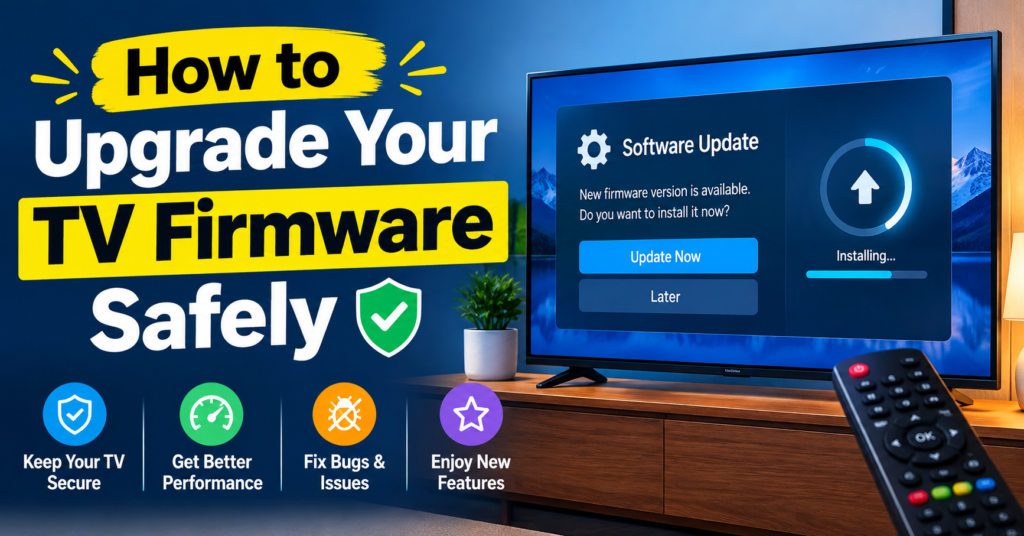
The Golden Rule: Never Interrupt an Update
If you remember only one thing from this article, remember this:
Once the update starts, DO NOT switch off the TV, DO NOT press any button, and DO NOT unplug it from the wall.
90% of bricked TVs I hear about in the comments happen for one reason – power failure or someone pulling the plug at 60% because “it was taking too long.”
A smart tv firmware update rewrites internal memory. If that process breaks in the middle, the TV has no working software to boot from. That’s what service centres call a “software brick,” and it often needs a motherboard replacement.
In India, this is serious. With our voltage fluctuations and monsoon power cuts, you need to plan for stable power first.
Also Read: ViewSonic Google TV Series
Before You Start: 7-Point Safety Checklist
Do this 5-minute prep. It will save you from 99% of problems:
1. Use stable power. Ideally, connect your TV to a UPS or at least a good voltage stabilizer / surge protector. If it’s raining heavily and light is fluctuating in your area, postpone the update to tomorrow.
2. Use stable internet for OTA. For online updates, use 5GHz Wi-Fi or better, a LAN cable if possible. You need at least 2-3 Mbps uninterrupted for 20-30 minutes. Don’t update on mobile hotspot if the signal is weak.
3. Note your current version. Go to Settings > About > Software Version and take a photo with your phone. If something goes wrong, the service engineer will ask for this.
4. Take photos of your settings. Picture mode, brightness, audio output, Wi-Fi password. Some updates reset picture settings to default.
5. Free up space. android tv and google tv models need 500MB – 1GB free. Delete unused apps. Go to Settings > Apps > Clear Cache.
6. Download only from the official site. Never install firmware from YouTube description links, Telegram, or third-party blogs. Only from samsung.com, lg.com, sony.co.in, mi.com, etc. Check the exact model number – e.g., Samsung UA43UE7100KXXL and UA43UE7100KXXL are different from UA43DU7100. One letter difference = different firmware .
7. Keep your remote ready. Keep fresh batteries in the remote. You don’t want the remote dying during confirmation steps.
Done? Now choose your method.
Method 1: Online Update via Wi-Fi (Safest for 95% Users)
This is called OTA (Over-The-Air) update. This is what I recommend for everyone.
For Samsung Tizen TV:
- Press Home > Settings > Support > Software Update
- Select Update Now
- If an update is found, select Yes. TV will download, then restart automatically
- After restart, you will see a green tick. Don’t touch anything till you see your home screen again
Tip: Turn on Auto Update in the same menu so you don’t have to check manually.
Buy: Samsung UA43UE86AHULXL Crystal Vision AI Smart TV
For LG webOS (C3, C4, UR, UQ series):
- Press Settings on remote > All Settings > General > About this TV
- Tick “Allow Automatic Updates”
- Click “Check for Updates”
- Accept and let it install. LG TVs usually take 5-15 minutes and restart twice. That’s normal.
This answers the very common question – how to update firmware on LG OLED TV. It’s the same path for OLED and QNED, just make sure your OLED is not in Gallery Mode during update.
For Sony, TCL, Xiaomi, OnePlus, Hisense, Thomson (Android TV / Google TV):
The menu is almost identical because they share the same base:
- Go to Settings > Device Preferences > About > System Update
- On newer google tv models: Settings > System > About > System Update
- Select Check for Update
- If available, click Download & Install
- TV screen may go black for 2-3 minutes. The LED light will blink. This is normal. Wait patiently.
For Fire TV Stick / Fire TV built-in TVs: Go to Settings > My Fire TV > About > Check for System Update.
How long does it take? Usually 10 to 25 minutes depending on file size (300MB to 1.5GB) and internet speed. Leave the TV alone during this time.
Method 2: USB Update (When Wi-Fi Fails or No Internet)
Use this only if: OTA is not showing, your Wi-Fi is too slow, or the brand’s support team specifically told you to.
This is powerful, but riskier because a wrong file can cause issues. Follow exactly:
Step 1: Find your exact model and version Check the sticker behind the TV. Example: Mi 43″ A Pro 2025, Model: L43M8-A2IN. Write it down exactly.
Step 2: Download from official support page Go to the brand’s official support site on your laptop. Search your model > Downloads > firmware . Download the ZIP file. Check file size – if site says 1.2GB and your download is 850MB, it’s corrupted. Download again.
Step 3: Prepare a clean USB drive Use an empty 4GB or 8GB pen drive, formatted to FAT32. Not NTFS, not exFAT for older Samsung/LG models. Unzip the downloaded file and copy the contents to the root of the pen drive (not inside a folder). You should usually see a folder or .pkg / .bin / .zip file.
Step 4: Install
- Switch off TV from remote, keep main plug ON
- Insert USB into the USB port marked “Service” or USB 1
- Now go to the same Software Update menu as Method 1, but choose “Update via USB” / “Update Now” – TV will detect the drive
- Confirm Yes. Do not remove USB till TV restarts fully and asks you to remove it.
I personally use SanDisk and HP pen drives for this. Avoid very old or duplicate drives – corrupted sectors are a real cause of failed updates.
Also Read: Hisense E8S ULED Mini-LED TV Series Features
Brand-Wise Quick Tips From My Experience
Samsung: Never rename the update file. Samsung TVs are very picky about folder structure. Extract exactly as given.
LG: For how to update firmware on Hisense smart tv and LG models, wired LAN is far more stable than Wi-Fi. Hisense VIDAA TVs sometimes show “No Newer Version” on Wi-Fi but show an update on USB. That’s normal.
Xiaomi / Redmi / OnePlus / TCL: These android tv models often get updates in batches in India. If your friend got it and you didn’t, wait 7-10 days. Don’t force-install a global ROM on an Indian model – you can lose Widevine L1 and then Netflix will only play in SD.
Sony: Sony Bravia updates are large (often 1GB+). Keep at least 2GB free and use LAN cable. Sony TVs restart with the Sony logo for a long time – don’t panic.
What To Do If Update Gets Stuck?
Don’t panic. Here’s what to do in order:
If stuck at 0% or downloading for 1 hour: Cancel, restart router, restart TV (unplug for 60 seconds, plug back), try again at night when internet is faster.
If stuck at 50-80% installing for more than 30 minutes: Do NOT unplug yet. Wait one full hour. If LED is still blinking, it means it’s still writing. Only if screen is frozen with no LED activity for 60+ minutes, then power cycle once.
If TV is in boot loop (logo comes and goes): Try a forced factory reset – for most google tv models, hold Power + Volume Down on the TV’s physical buttons (not remote) for 10 seconds while plugging in. If that fails, contact brand service with your photo of the old version number.
If apps crash after update: Go to Settings > Apps > See All Apps > Clear Cache / Clear Data for that app, or uninstall and reinstall. This fixes 80% of post-update issues.
Never try to downgrade to old firmware by yourself unless the company has given an official rollback file. Downgrading with the wrong file is the fastest way to permanently brick a board.
Should You Always Update? My Honest Take
For 95% of users: Yes, update. Especially if the changelog mentions “stability,” “security,” “Wi-Fi fix,” or “picture performance.”
Hold for 1 week if:
- Your TV is working perfectly and you have an important match/movie night in the next 2 days
- It’s a major android tv os version jump (e.g., Android 11 to Google TV 12). Let early users report bugs on YouTube first
- Your TV is rooted or you use a custom launcher – update can remove it
I personally wait 3-4 days after release, check comments on USNMix and official forums, then update all my test TVs.
FAQs
How do I check my current TV software version? Settings > About > Software Version / Build Number. On , Smart Google TV it’s under Settings > System > About > Android TV OS build.
Can I update TV firmware from mobile? You can download the file on mobile, but I don’t recommend installing via mobile hotspot. Downloads often corrupt. Use a laptop and broadband for USB method, and home Wi-Fi for OTA.
Will a firmware update delete my apps and channels? Normal OTA update: No. Your apps and login stay. Major version upgrade or USB recovery: Sometimes picture/audio settings reset to default, rarely apps get removed. That’s why I told you to take photos first.
Why is my TV saying “No update available” but the website shows a new version? Rollouts are phased by region and serial number in India. Wait 2 weeks, or use the official USB method with your exact Indian model number.
Final Word
Updating your Smart TV safely is not technical – it’s just patience and discipline. Stable power, official firmware file, and don’t touch anything during installation.
Do that, and you will get a faster, safer TV without spending a rupee.
If this guide helped you, check out my practical TV setup and picture settings videos on the USNMix YouTube channel, where I show these exact steps live for Samsung, LG, Sony and Xiaomi models. And if you get stuck on any step, comment with your exact TV model number – I reply to most queries.
Stay tuned, and enjoy that new-TV feeling after the update, friends.
1 thought on “How to Upgrade Your TV Firmware Safely”